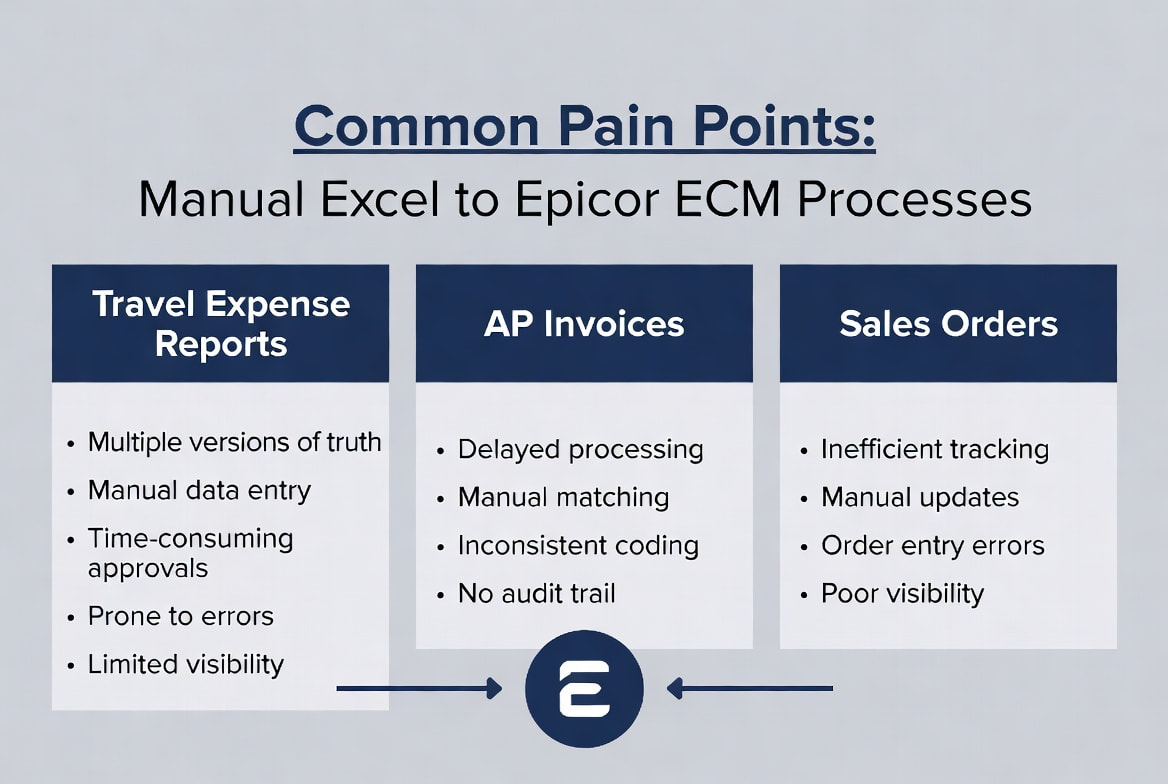
As an Epicor Kinetic and ECM consultant and developer, I help clients eliminate the manual effort of moving data from Excel into Epicor ECM. While Travel Expense Reports are one of the most common use cases, many organizations also struggle with AP Invoices and Sales Orders that arrive in complex Excel formats.
How It Works (Technical Breakdown)
1. Excel Template Setup (One-time)
Create or update your spreadsheet (expense report, AP invoice data, or sales order) and attach an XML Map via Developer → XML Source using the appropriate XSD schema.
2. User Process
Users fill out the familiar Excel file and drop it into a monitored folder. No new tools or training required.
3. PowerShell Automation Engine
A background script (running as a Scheduled Task or Windows Service) detects the file and:
- Opens the workbook silently using Excel COM automation.
- Exports structured XML using
$workbook.XmlMaps($mapName).Export($xmlPath). - Exports a clean PDF using ExportAsFixedFormat.
- Archives the original Excel file.
- Outputs the PDF + XML pair (GUID filenames) to the ECM import folder.
4. Epicor ECM Processing
- Expense Reports: Routed into ECM for approval and then posted to AP.
- AP Invoices: The XML data is used to create invoices that enter the standard Invoice Processing Workflow with all normal controls, approvals, and matching rules.
- Sales Orders: The data flows into the Sales Order Workflow in ECM, where it can be validated, approved, and released into Kinetic.
XSD Schema Example (Travel Expense Reports)
<?xml version="1.0" encoding="UTF-8"?>
<xs:schema xmlns:xs="http://www.w3.org/2001/XMLSchema">
  <xs:element name="TravelExpenseReports">
    <xs:complexType>
      <xs:sequence>
        <xs:element name="Report" maxOccurs="unbounded">
          <xs:complexType>
            <xs:sequence>
              <xs:element name="ReportID" type="xs:string"/>
              <xs:element name="EmployeeName" type="xs:string"/>
              <xs:element name="Department" type="xs:string"/>
              <xs:element name="DestinationPurpose" type="xs:string"/>
              <xs:element name="TripDate" type="xs:date"/>
              <xs:element name="Category" type="xs:string"/>
              <xs:element name="DayOfWeek" type="xs:string"/>
              <xs:element name="Description" type="xs:string"/>
              <xs:element name="Amount" type="xs:decimal"/>
              <xs:element name="Notes" type="xs:string" minOccurs="0"/>
              <xs:element name="TotalMiles" type="xs:decimal" minOccurs="0"/>
              <xs:element name="MileageRate" type="xs:decimal" minOccurs="0"/>
              <xs:element name="GrandTotal" type="xs:decimal" minOccurs="0"/>
            </xs:sequence>
          </xs:complexType>
        </xs:element>
      </xs:sequence>
    </xs:complexType>
  </xs:element>
</xs:schema>
Sample XML Output Example
<?xml version="1.0" encoding="UTF-8"?>
<TravelExpenseReports>
  <Report>
    <ReportID>EXP-2026-00142</ReportID>
    <EmployeeName>Mike Siegel</EmployeeName>
    <Department>IT Consulting</Department>
    <DestinationPurpose>Client site visit - Zim Aircraft</DestinationPurpose>
    <TripDate>2026-06-10</TripDate>
    <Category>Mileage</Category>
    <DayOfWeek>TUE</DayOfWeek>
    <Description>Round trip to client site</Description>
    <Amount>48.00</Amount>
    <Notes>142 miles @ $0.32/mile</Notes>
    <TotalMiles>142</TotalMiles>
    <MileageRate>0.32</MileageRate>
    <GrandTotal>1247.50</GrandTotal>
  </Report>
</TravelExpenseReports>
Key Benefits
- Dramatically reduces manual data entry for Expense Reports, AP Invoices, and Sales Orders.
- Applies consistent workflow rules and controls in Epicor ECM.
- Improves speed, accuracy, and auditability.
- Easy for end users — they continue working in Excel.
Ready to Automate This in Your Environment?
If you're still manually entering data from Excel into Epicor, I can help you implement this automation. Contact me at mike@siegelsoftware.com or visit siegelsoftware.com. I can deliver the full PowerShell script, customize the schemas, and get this running in your Epicor ECM environment.